Upgrading Construct 2 NW.JS builds
Construct 2’s NW.JS build system uses VERY old versions of NW.JS – this causes issues. Let’s upgrade your Construct 2 game’s build’s NW.JS version to address these issues!
Preparation
- Make an NWJS build in Construct 2 (these instructions will not be going over the details on how to do this step)
- If creating builds for more than just Windows, I have found that exporting your build directly to a network folder that exists on a Linux or Mac PC helps to keep permissions from being stripped. Building to a Windows folder removes Linux and Mac permissions, because of the different file systems.
- From your build folder: copy your Mac build to your Mac, your Linux build to your Linux machine, and your Windows build to your Windows machine.
- Download the version of NW.JS that you’d like to use, from here: https://nwjs.io/downloads/
- You’ll have to download the Windows, Mac, and Linux versions separately, directly on from those machines – again, permissions are a thing that will bite you in the butt if you’re not careful.
- Also, you may have to experiment with different versions, and using either SDK or NORMAL versions, to get everything working as you need. NW.JS, in my experience, was pretty notorious for random things breaking version to version… good luck!
Windows
(coming soon, maybe?)
Mac
- Find your build on your Mac, open it in Finder. Find the NWJS version you downloaded, open it in another Finder window.
- Right-click nwjs.app -> Show Package Contents
- Right-click your-build.app -> Show Package Contents
- Open the Contents folder in both
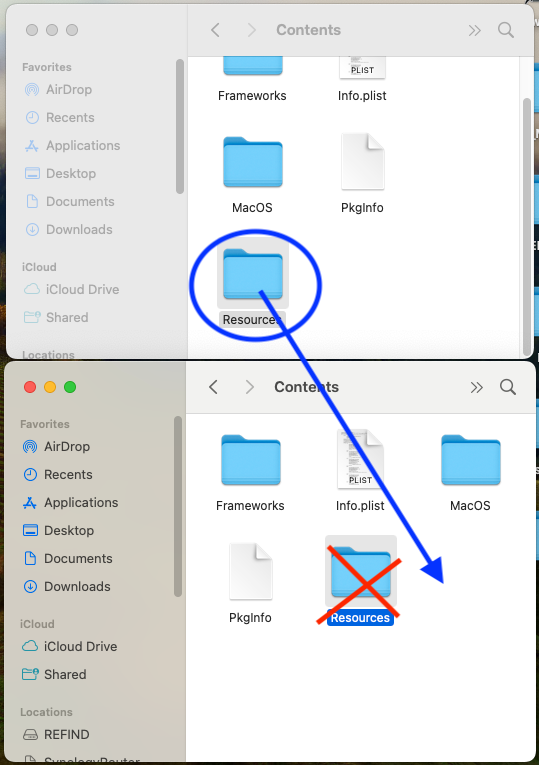
- DELETE the Resources folder in the nwjs app folder
- COPY the Resources folder from your build to the nwjs app folder. Ensure the copied Resources folder is in the same place of the one you just deleted!
Note: For Hypnospace, we also have an external “data” folder in the root folder alongside the executable. In Mac builds, that data folder must go INSIDE the .app, alongside the Contents folder.
- Rename nwjs.app to your-game.app, as applicable, and test it!
- Package.json (where you update chromium-args, see below) is found here:
foo.app/Contents/Resources/app.nw/package.json
Linux
(coming soon, maybe?)
Package.json chromium-args
Here’s Hypnospace’s “chromium-args” from package.json, this is what works for us, your milage may vary:
"--disable-plugins --disable-internal-flash --disable-popup-blocking --enable-gamepad --enable-html5-camera --allow-file-access-from-files --disable-devtools --in-process-gpu"